Do you need to do anything to your data logger or software to compensate for the beginning of daylight saving time? Read this short article to find out!
Residents of many parts of North America, and various areas around the world, continue to observe the practice of daylight saving time (DST) during part of the year by moving their clocks forward one hour in the spring and backward one hour in the fall. Not all areas of the world that follow DST, however, use the same dates for the time changes. For example, for many parts of the U.S., you will move your clocks forward on March 10th this year, whereas many other countries will move their clocks forward on March 31st.
As confusing as all that may be, sorting out your data logger isn’t that tricky. For data consistency, many data loggers are left on standard time throughout the year. To make sure that happens, there are some things you’ll want to take a look at, and understand, in your LoggerNet software settings.
- In the Setup Screen, select your data logger from the Entire Network list on the left.
- At the top of the screen, select the Clock tab.
On the Clock tab, my checkbox for enabling the Automated Clock Check feature is NOT selected.
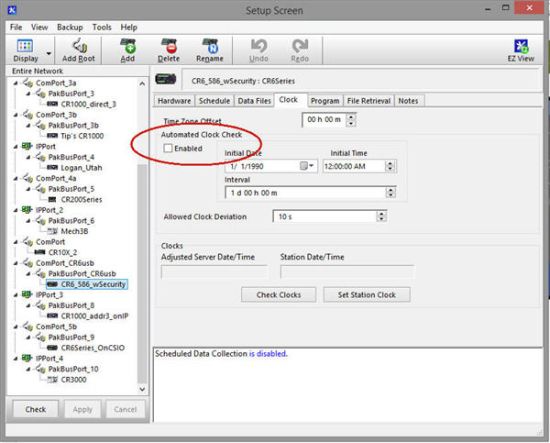
This means that the feature is disabled, which is what I generally recommend. When this feature is enabled, the data logger clock is compared with the LoggerNet server clock. If the data logger clock is off by at least the amount indicated in the Allowed Clock Deviation field, the data logger clock is automatically reset to match the LoggerNet server clock. Your data logger will not be contacted specifically for a clock check, but, during the next data collection attempt—whether manual or scheduled—the data logger clock will be checked.
Tip: If you live in an area that observes daylight saving time and you set your data logger clock forward an hour, you will get what appears to be a skipped record—because you caused it to be missed.
Future Tip: If you set your data logger clock backward an hour in the fall, when daylight saving time ends, you can end up with two records with the same time stamp. Keep this in mind as you review your data.
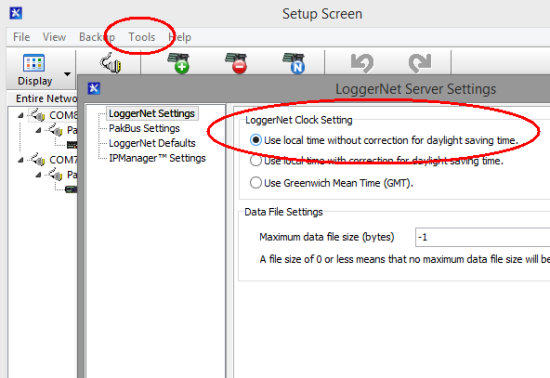
Bonus Tip: You can configure LoggerNet so that its time does not correct for daylight saving time. To do this, follow these steps:
- In the Setup Screen, select the Tools menu option.
- Select LoggerNet Settings.
- Click the radio button for Use local time without correction for daylight saving time.
- Click the Apply button.
I hope this information helps you maintain consistency for your data—no matter what time of year it is or where you live. If you have any questions, feel free to post them below.